How Inkscape Became My Default Vector Tool
Is a strange thing, redesigning a logo I created - fifteen years later. Not just the quality, but the tools I use are different. The logo was saved as an .ai file, and I hesitated before opening it - it felt strange. I hadn’t opened Illustrator in months. Not out of dislike (I’ve used Illustrator professionally for years), but because my workflow had already shifted.
While the design world buzzes about Affinity’s free tier, I’ve been quietly using a tool that’s been free, open-source, and improving for years - long before ‘free’ became a trend. Inkscape didn’t just appear; it’s been haunting my workflows in the best way: like a reliable ghost in the machine, always there when I needed it, but never demanding attention.
A designer’s strength isn’t loyalty to a brand - it’s knowing which tool serves the purpose. And for me, that’s increasingly been Inkscape."
(And let’s address the elephant in the room: Privacy. Unlike some "free" software that trades your data for access, open-source tools like Inkscape operate without hidden tracking, ads, or telemetry. No corporate eyes watching your workflow. Just a tool that respects your space as much as it respects your budget.)
Here’s how the shift happened and why I’m not looking back.
The Ghost of Adobe Past
Illustrator has been my go-to vector tool for years. Reliable, powerful, and deeply embedded in the design ecosystem. But over time, certain friction points became harder to ignore.
The subscription model began to feel less like a service and more like a recurring obligation. SVG exports often required manual cleanup, adding unnecessary steps to my workflow. And while Illustrator is undeniably robust, its performance with large files could sometimes feel sluggish, like working through thick fog.
I didn’t abandon Illustrator overnight. But when I noticed I was only opening it for client files, more out of habit than necessity - I knew it was time to reassess.
Inkscape’s Silent Takeover
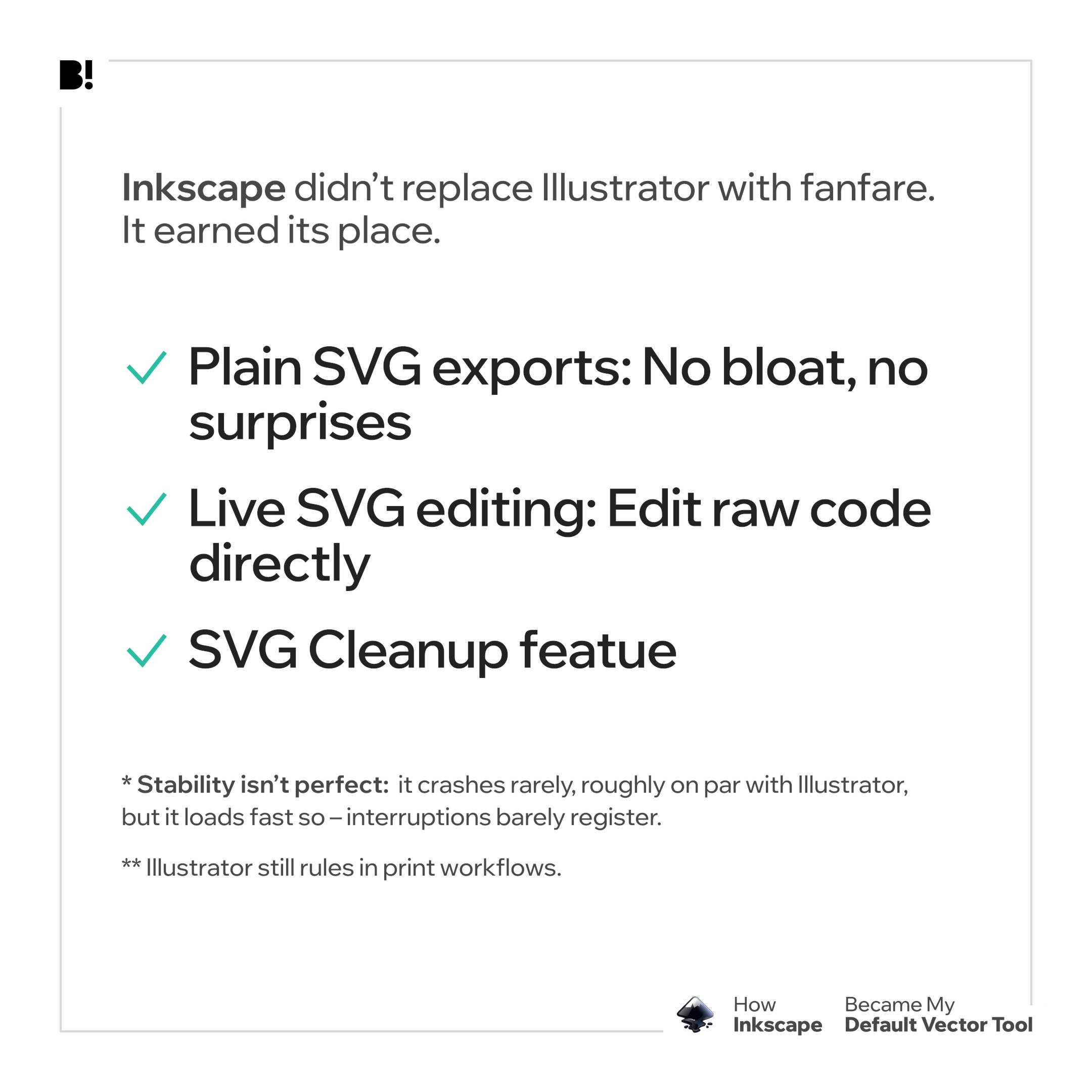
Inkscape didn’t replace Illustrator in a dramatic switch. It earned its place by addressing pain points I hadn’t even realized were solvable without the overhead.
SVG Workflows That Just Work
Plain SVG Exports: Inkscape’s SVG outputs are predictable and minimal - no extra metadata, no hidden layers, no bloated file sizes. What you design is what you get, every time. (Pro tip: Use Export as Plain SVG for the cleanest results.)Illustrator’s SVG exports can sometimes include unused definitions, redundant path data, or proprietary markup. Inkscape? "What you see is what you get" literally.
Live SVG Code Editing + Naming Control: Need to tweak a path or optimize an SVG manually? Inkscape lets you:
- Edit raw SVG code directly in the app (Ctrl+Shift+X).
- Name paths and layers for CSS styling (e.g.,
#logo-path { fill: red; }). - Cleanup document of unused stuff such as clipping paths and gradients.
Why this matters: For inline SVGs, this means no more guessing - just clean, semantic code.
Illustrator lacks this feature entirely.
Where Illustrator Still Excels
Illustrator remains the gold standard for CMYK and print workflows. If you’re designing for physical media, it’s still the tool to beat.
But for 90% of my work: logos, icons, digital - Inkscape doesn’t just match Illustrator. It outperforms it in key areas:
- Speed: No subscriptions, no lag, no waiting for software to load.
- Control: Direct access to SVG code and naming conventions.
- Reliability: Files that work seamlessly across platforms.
Inkscape’s Limitations
Of course, Inkscape isn’t perfect. Common complaints include:
UI/UX quirks: The interface can feel less polished than Illustrator’s.
CMYK support: Limited compared to Adobe’s tools.
Plugin ecosystem: Smaller than Illustrator’s, though growing.
Learning curve: Some tools and shortcuts differ from Adobe’s standards.
The Figma + Inkscape Power Duo
I use Figma for UI/UX it’s amazing for collaboration and prototyping. But for logos, icons, and precision vector work, Inkscape is my tool of choice. Here’s how they complement each other:
Seamless SVG Handoff
I design logos/icons in Inkscape, export as Plain SVG, and drop them into Figma - no extra steps.
Color and Scalability Sync
Inkscape handles vector precision (paths, nodes, SVG code), while Figma manages layout and collaboration.
Pro tip: Use Figma’s color variables to sync with Inkscape’s named paths (e.g., #logo-primary in SVG → logo-primary in Figma).
The Moment It Clicked
Inkscape didn’t win me over with flashy promises. It won me over by disappearing into my workflow, like a well-worn pencil. No subscriptions. No surprises. Just clean SVGs, precise control, and the quiet confidence of open-source.
And then there’s the moment that sealed it: I caught myself automatically reaching for Inkscape, not because I had to, but because it was simply the better tool for the job. No fanfare. No grand announcement. Just the quiet realization that some things don’t need to be complicated to work well.
Get Inkscape at: inkscape.org
P.S. The screen dims. A single leaf taps against the window - autumn’s way of saying time to let go. Some tools are like that: You don’t realize you’ve moved on until you’re already gone. And, if you were wandering about the logo - it is almost finished... time to cross that line.
